The steps below will show you how to install the Downloader app on the Firestick, Fire TV, Fire TV Cube, and any Fire TV device that runs on Android OS.
Important Note: We are using the Fire TV Stick 4K Max in this instance. Any newer Amazon devices like the Fire TV Stick Select running on “Vega OS” will not be able to side-load apps with Downloader.
1. From the home screen of your Fire TV device, hover over the Search button on top.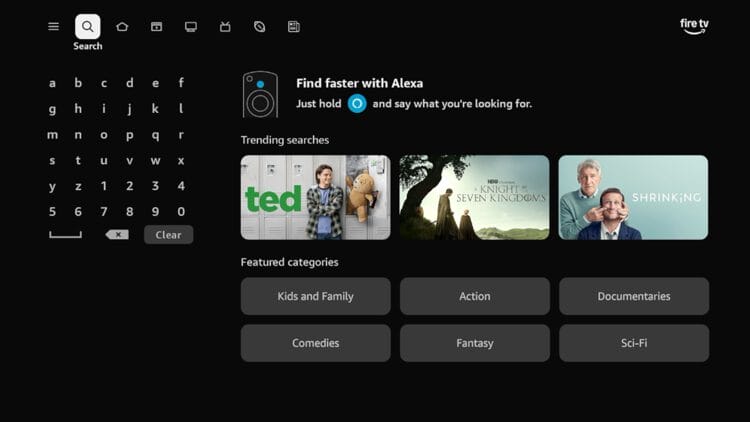
2. Search for ‘downloader’ and select the option that appears.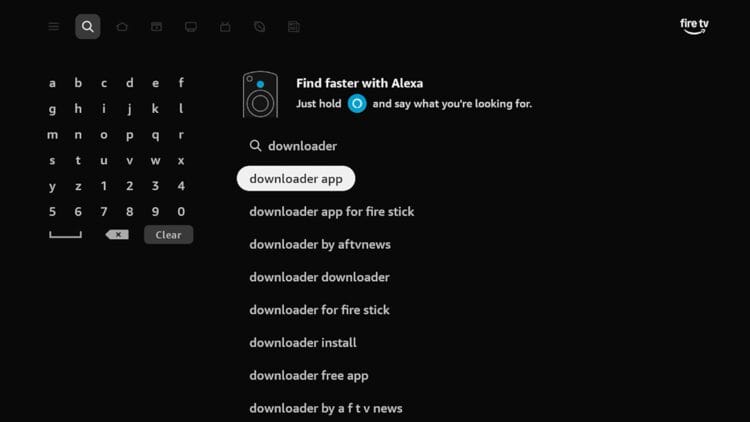
3. Choose the official Downloader app from AFTVNews.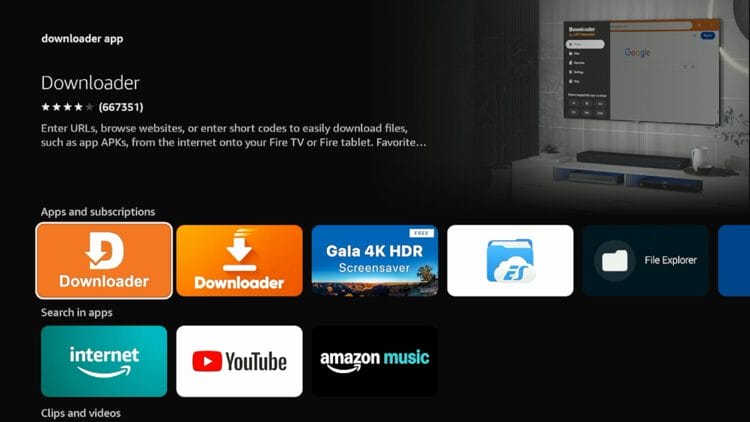
4. Click Download.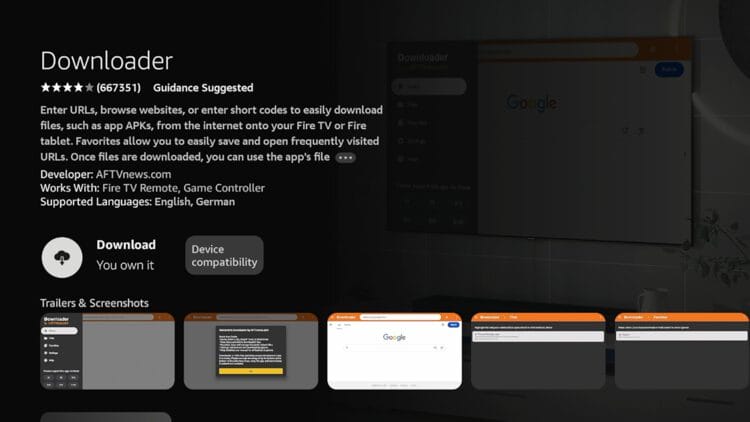
5. Wait for the app to install.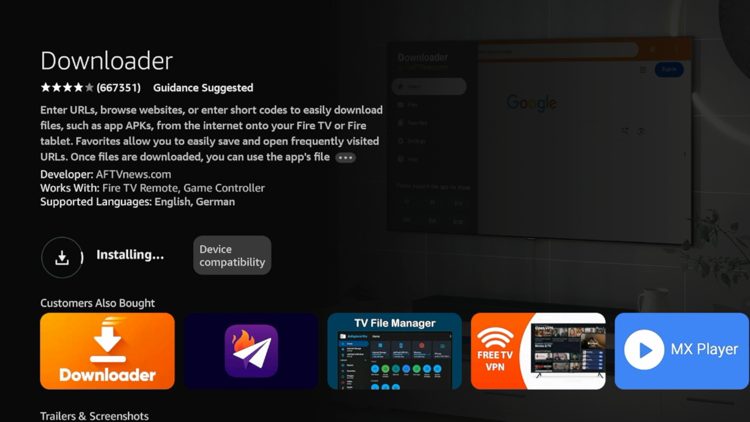
6. The app will automatically launch. Click OK when you see this welcome message.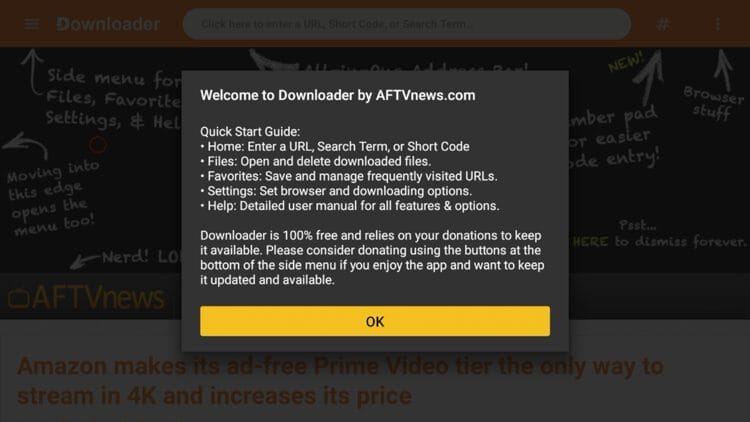
7. You have successfully installed Downloader app on your Firestick/Fire TV device. But next we need to enable permissions for installation.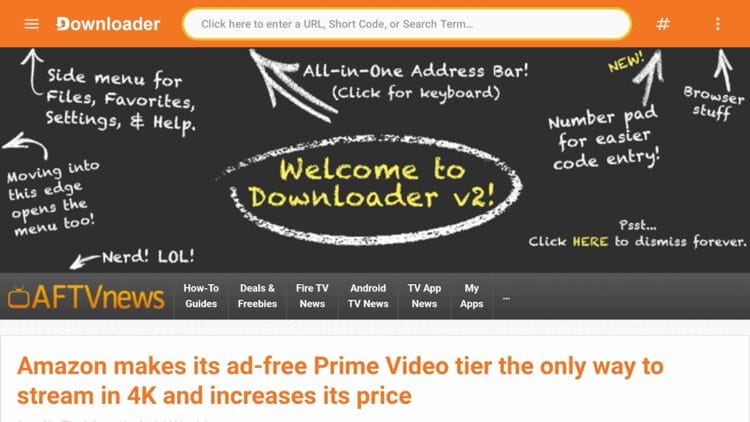
8. Return to the Fire TV home screen and click Settings on the bottom left.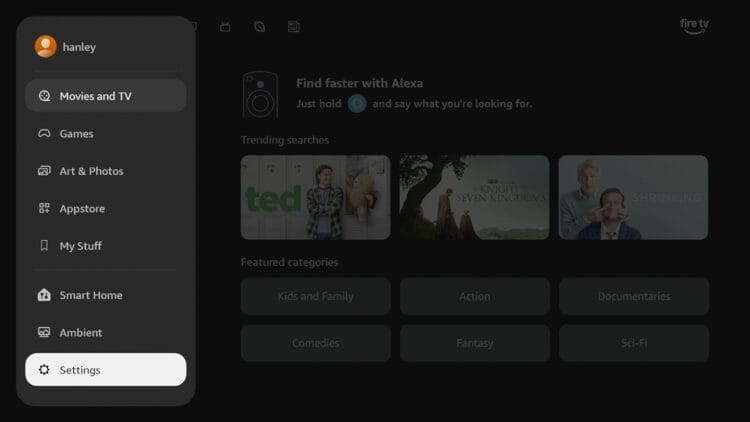
9. Click My Fire TV.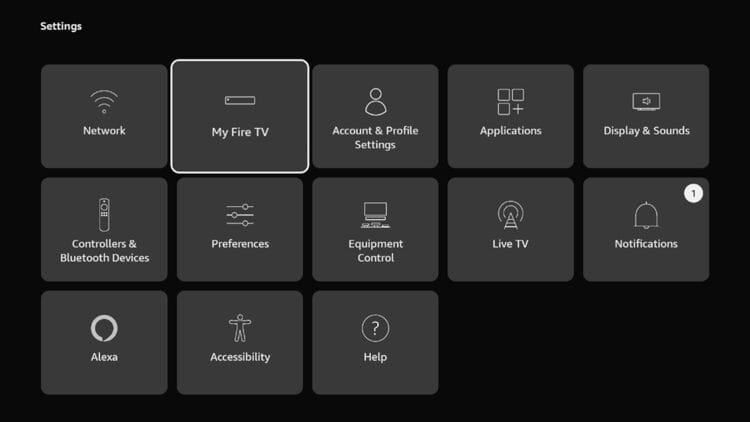
10. Click Developer options. (IF YOU DO NOT SEE DEVELOPER OPTIONS, SKIP TO SECTION BELOW).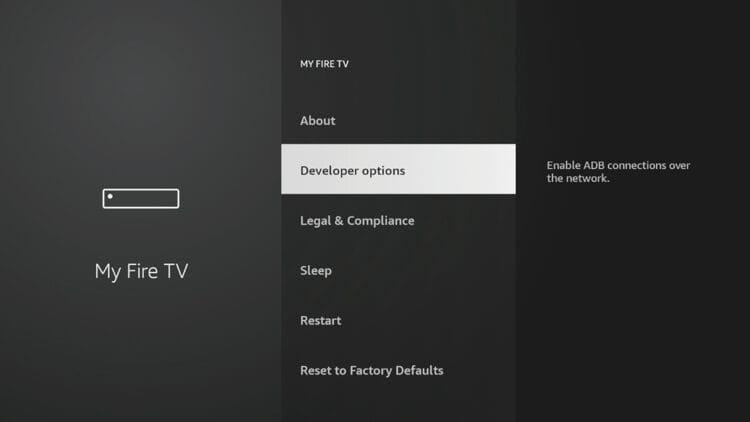
11. Click Install unknown apps.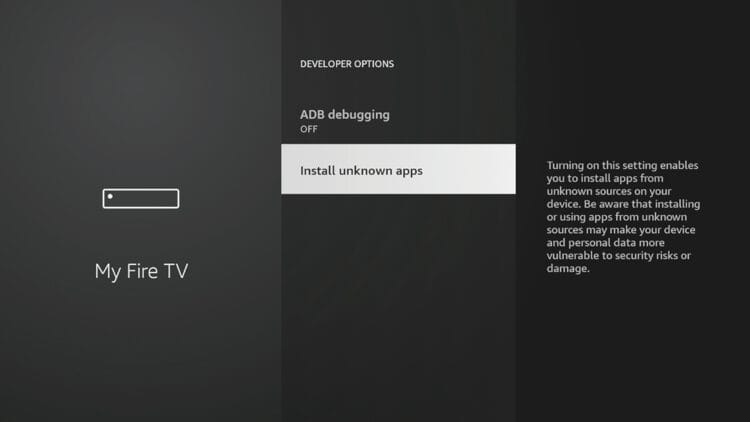
12. Click Downloader to turn it ON.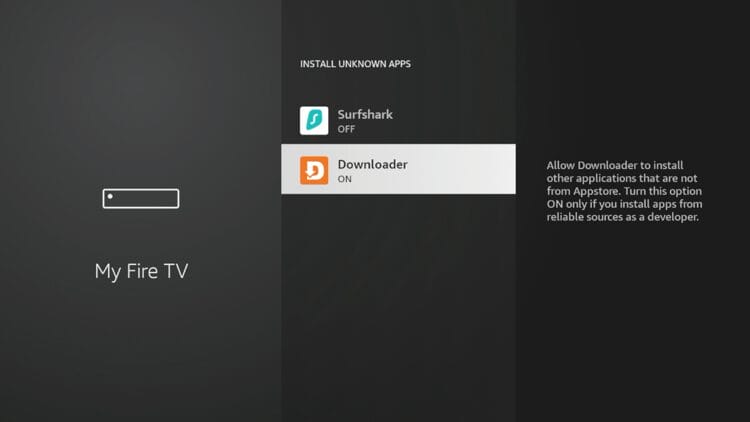
13. You can now side-load apps with Downloader!
14. Open Downloader and type in "5509001" to download Trident TV App.
15. Trident TV will automatically download. After installation, use provided Username / Password to login.
How to Enable Developer Options on Firestick/Android TV
Developer Options is the setting used to enable apps from unknown sources. In other words, this is how we can side-load applications that aren’t available in the Amazon App Store.
1. Hover over the Settings icon and click My Fire TV.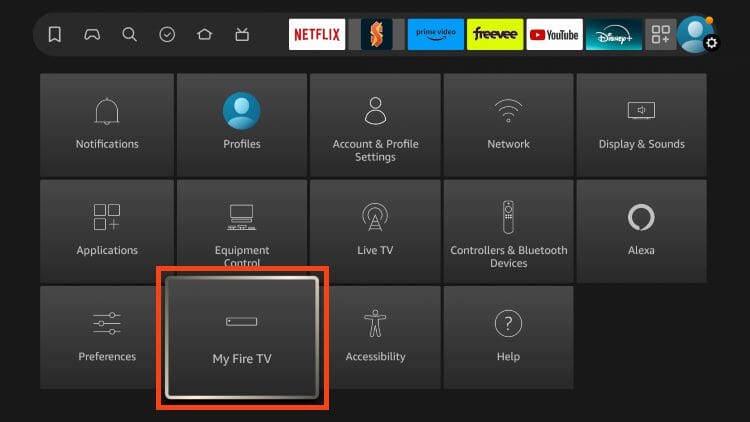
2. Click About. (This is typically where you would find Developer Options)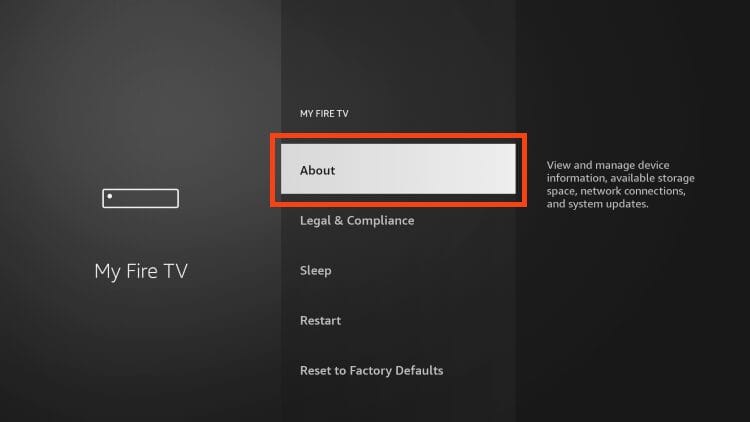
3. Hover over Fire TV Stick 4K Max or whatever your device is and click the OK button on your remote 7 times to become a developer.
You will then encounter a message at the bottom of your screen stating “No need, you are already a developer.”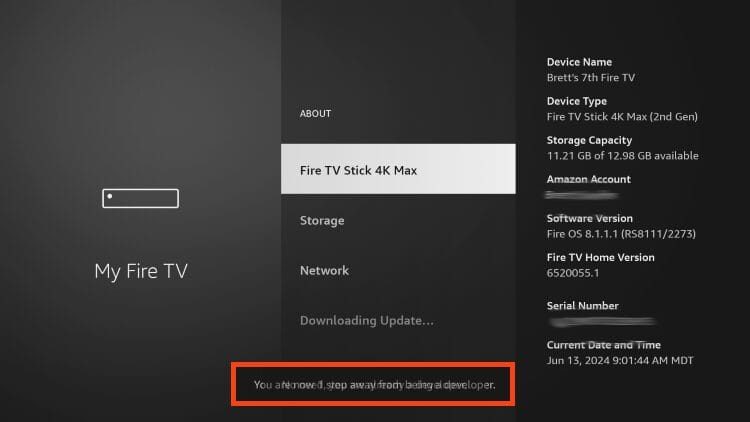
4. Click the back button on your remote and you will notice Developer Options is now showing within My Fire TV.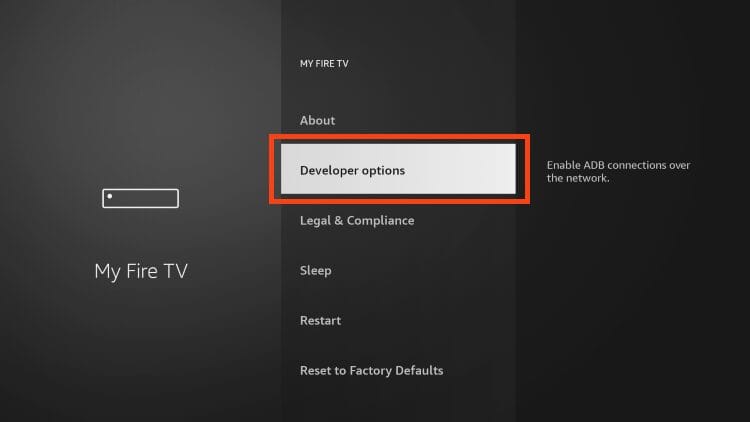
5. Click Install unknown apps.
6. Click Downloader to turn it ON.
7. You can now side-load apps with Downloader!
8. Open Downloader and type in "5509001" to download Trident TV App.
9. Trident TV will automatically download. After installation, use provided Username / Password to login.
VPN's are becoming a must have with these services and we highly recommend Surfshark VPN. Surfshark will protect your data & information when installing apps not located within the Google Play Store.
Click here to purchase Surfshark VPN with discount.