How to Install Downloader on Android TV/Google TV
In this example, I am using an onn 4K Plus to install Downloader but this process works for any device running the Android TV/Google TV operating system.
1. Hover over the search icon from the home screen.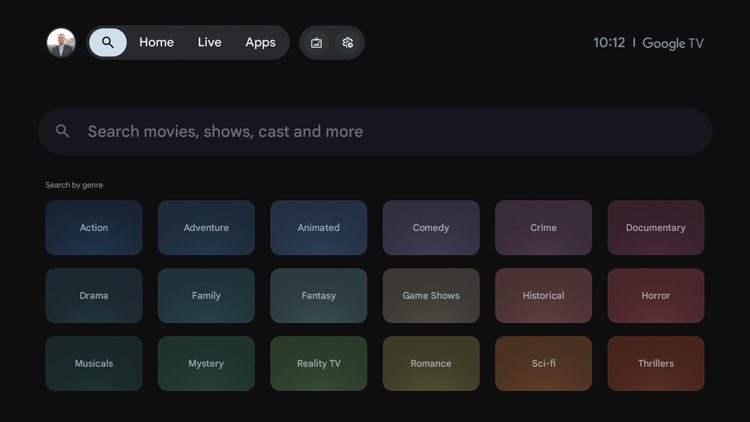
2. Enter in ‘downloader’ and click the search icon.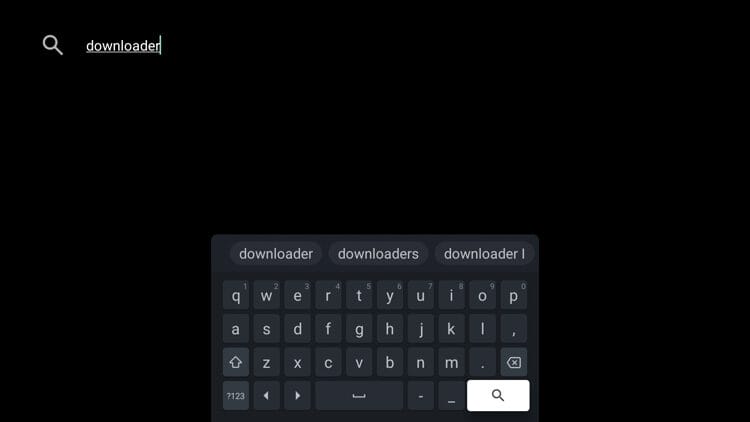
3. Choose the official Downloader by AFTVnews under Apps.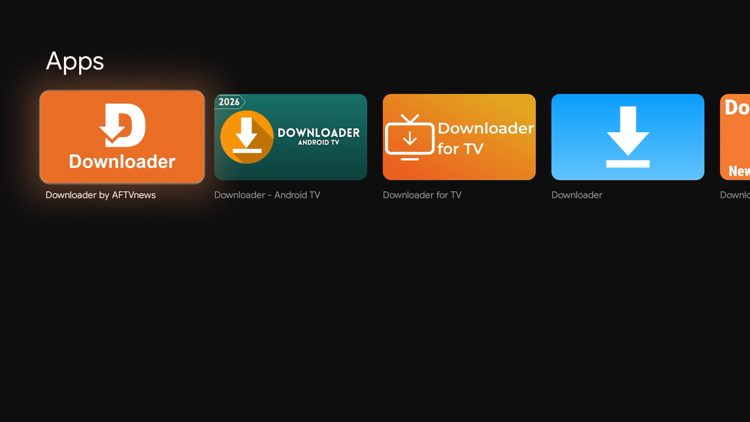
4. Click Install.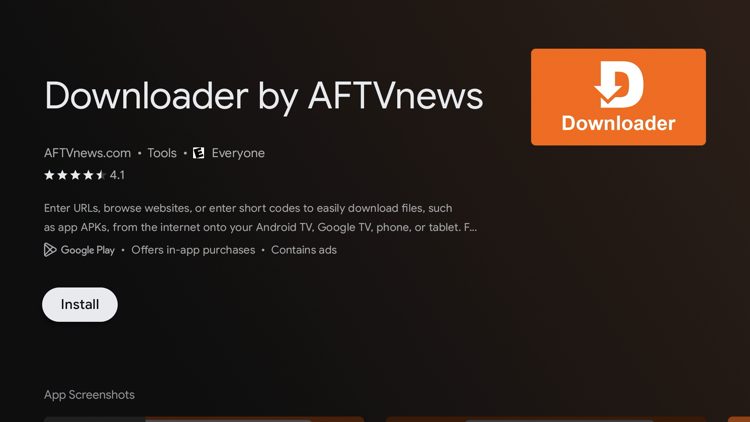
5. Wait for the app to install.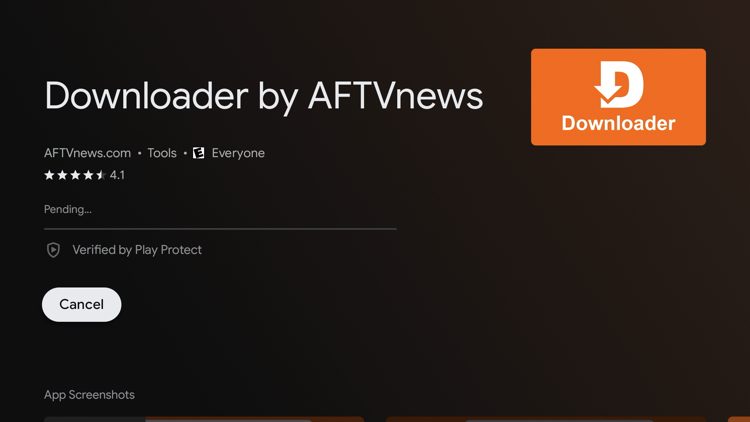
6. After the Downloader app has installed click Open.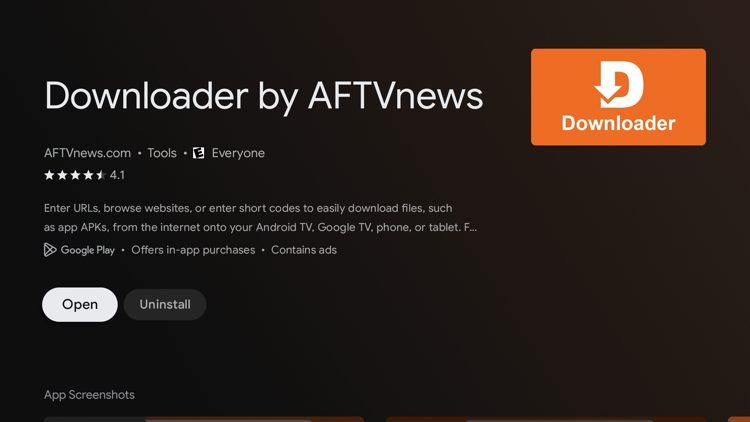
7. Click OK when you see this welcome message.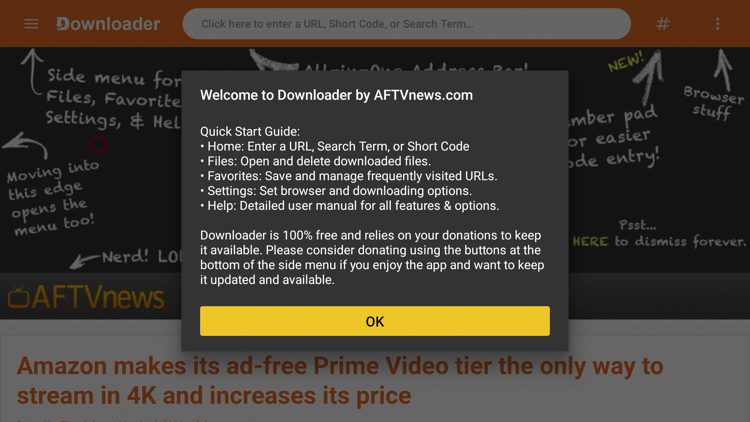
8. You have successfully installed Downloader app on your Android TV/Google TV device.
But next we need to enable permissions for installation. Click the search box on top.
9. Enter the code 5509001 and click the checkmark icon.
10. A message will appear, click Settings.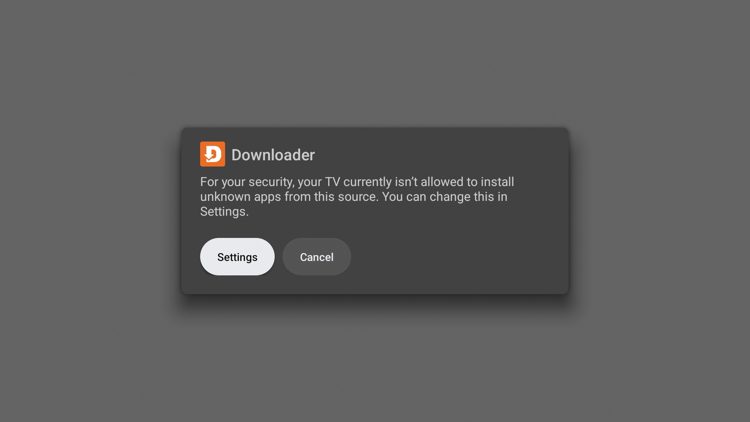
11. Click the toggle for Downloader to turn on unknown apps. Then click Install.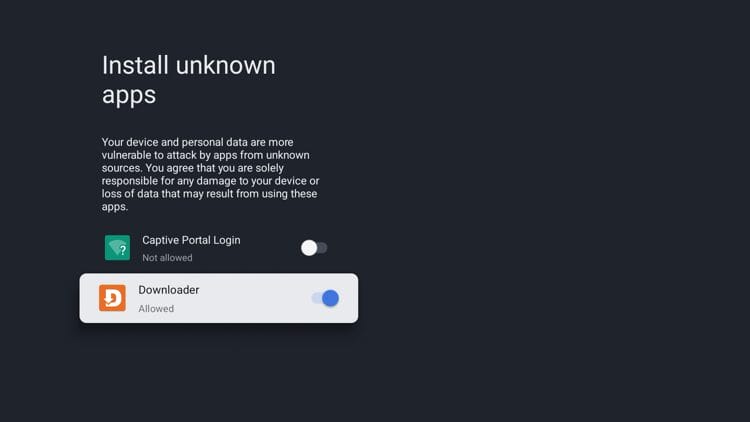
12. Click Open or Done.
13. You have successfully downloaded Trident TV onto your device.
14. Use provided Username / Password to login.
VPN's are becoming a must have with these services and we highly recommend Surfshark VPN. Surfshark will protect your data & information when installing apps not located within the Google Play Store.
Click here to purchase Surfshark VPN with discount.